Positioning Widget
Adjust date, time, and location without leaving the viewport. The widget is split into two panels so you can keep Date & Time visible while collapsing the map.
Where to Find It
- Open the Scene Builder tool.
- Enable the Positioning Widget toggle in the viewport toolbar.
Date & Time Panel
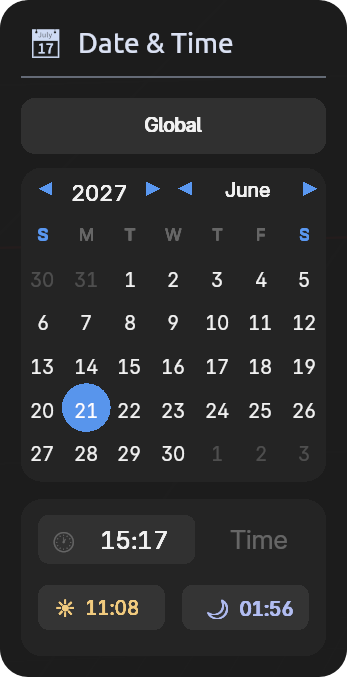
- Calendar for year, month, and day (use the arrows to step).
- Time control: click to activate, then drag left/right to scrub time.
- Clock icon opens a compact time picker for hours/minutes.
- Sunrise / Sunset buttons set time quickly; you can drag after clicking to offset.
- Global / Local toggle switches between scene-wide positioning and per-body overrides.
Info
Not all locations have sunrises and sunsets for every date. When unavailable, the buttons will be grayed out and a tooltip will explain why.
Location & Positioning Panel
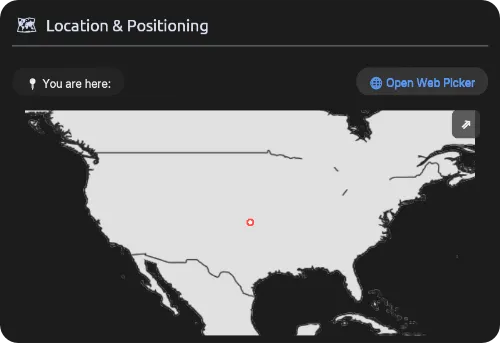
- Open Web Picker opens the interactive map picker.
- Map click sets latitude/longitude.
- Expand toggles a larger map view for more precise placement.
- Pan: hold Ctrl and drag when expanded.
- Zoom: Ctrl + Scroll while over the map (expanded view).
Note
For full positioning controls and data entry, see Global Position.