Exposure
Exposure adjusts overall scene brightness or applies automatic exposure for HDR scenes. It is a global effect that sits below the layer stack.
Where to Find It
- Open the TrueSKY panel -> Effects.
- Scroll to Global Effects and open Exposure.
- Use the Enable toggle in the panel header to turn it on or off.
Panel Layout
- Mode Buttons: Manual or Auto Exposure.
- Manual Controls: Simple exposure adjustment.
- Auto Exposure Controls: Metering and bias controls.
Controls
Modes
- Manual: Simple exposure slider (stops up or down).
- Auto Exposure: Adaptive exposure based on the image.
Manual Controls
- Opacity: Blend between original and adjusted.
- Exposure: EV adjustment slider.
Auto Exposure Controls
- Auto Exposure Mode
- Whole Screen: Averages the entire frame.
- Center Weighted: Prioritizes the center of the frame.
- Spot Metering: Uses a chosen spot for exposure.
- Matrix Metering: Balances multiple regions.
- Exposure Offset: Bias the auto result brighter or darker.
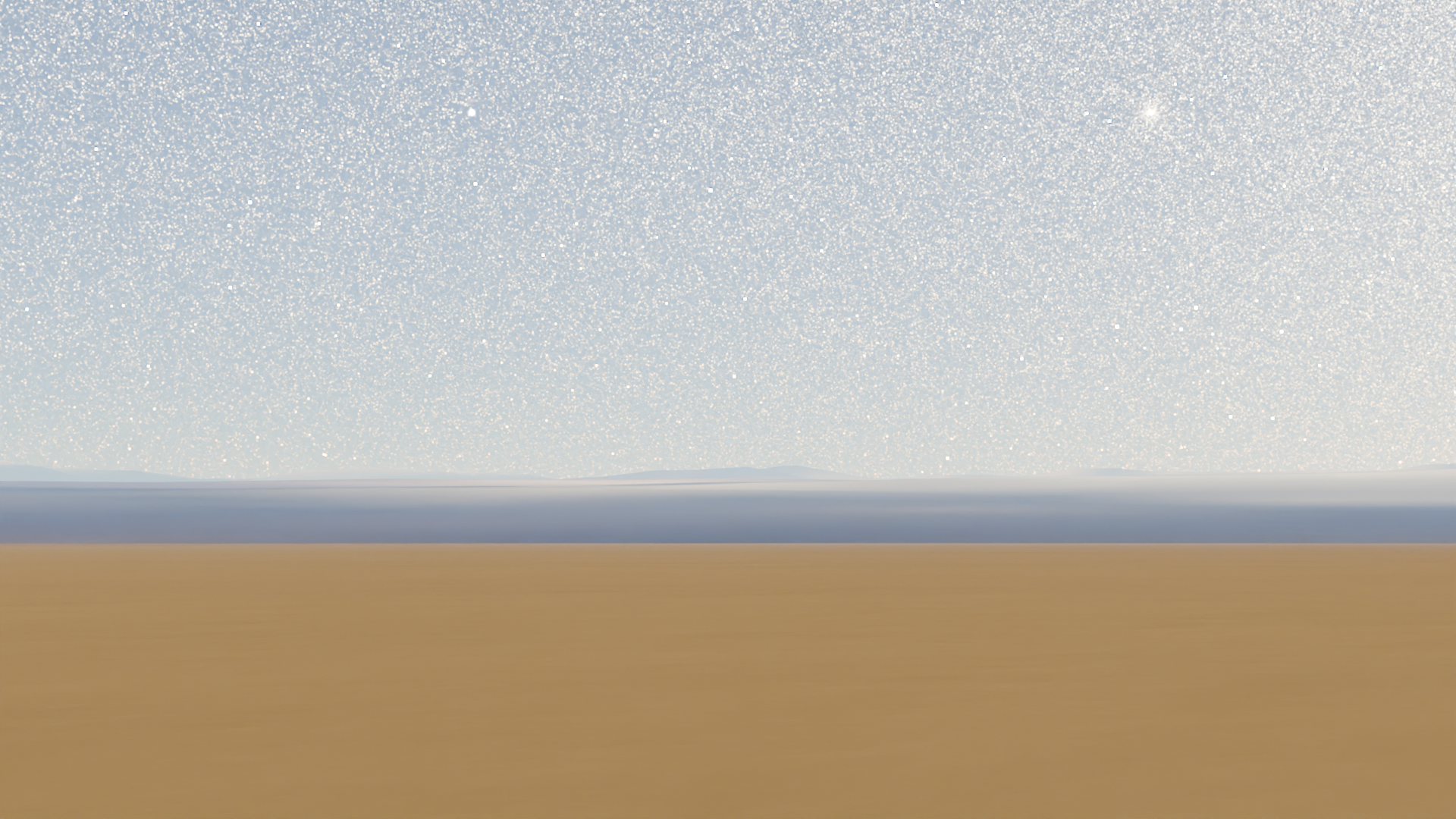
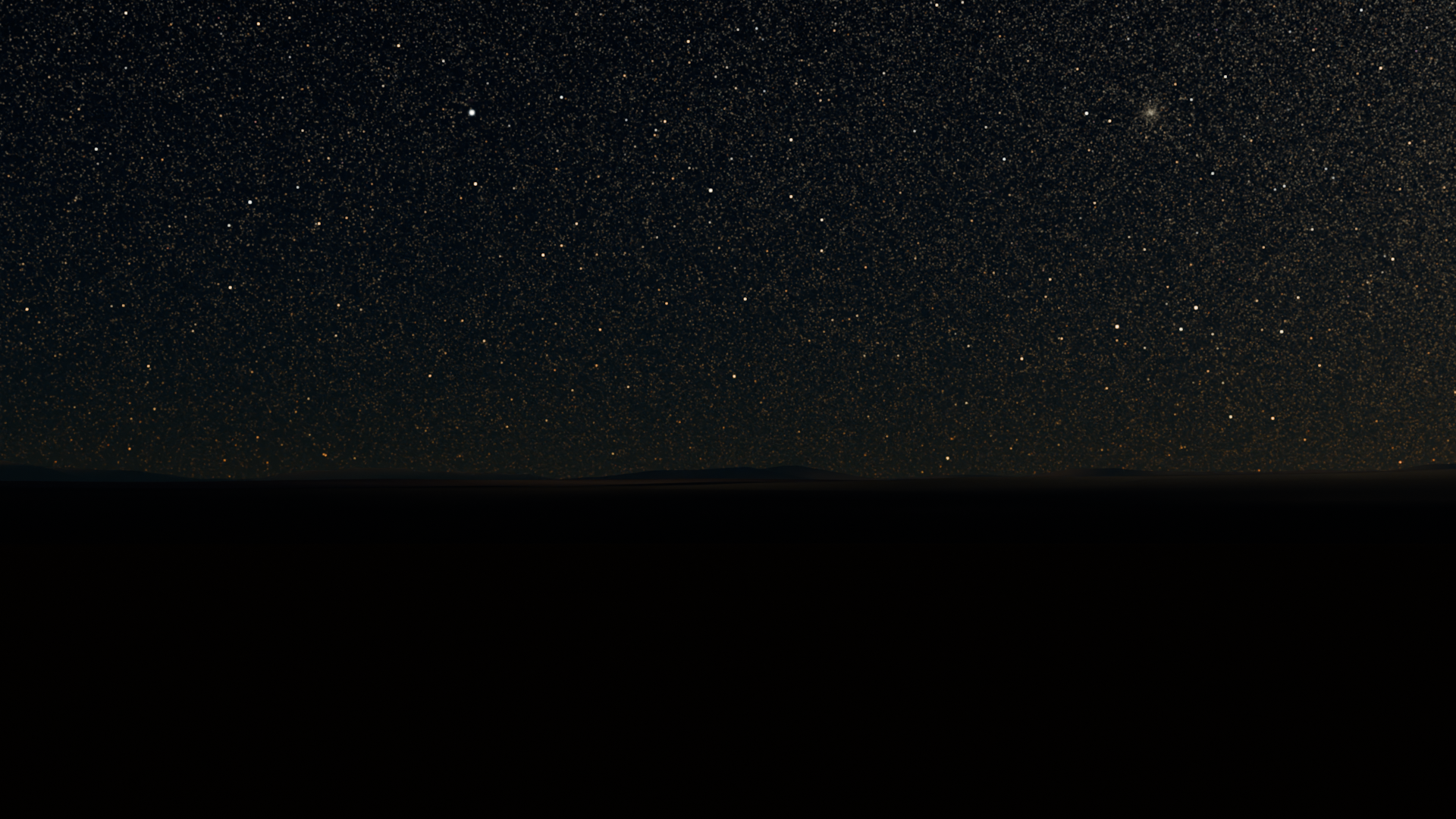
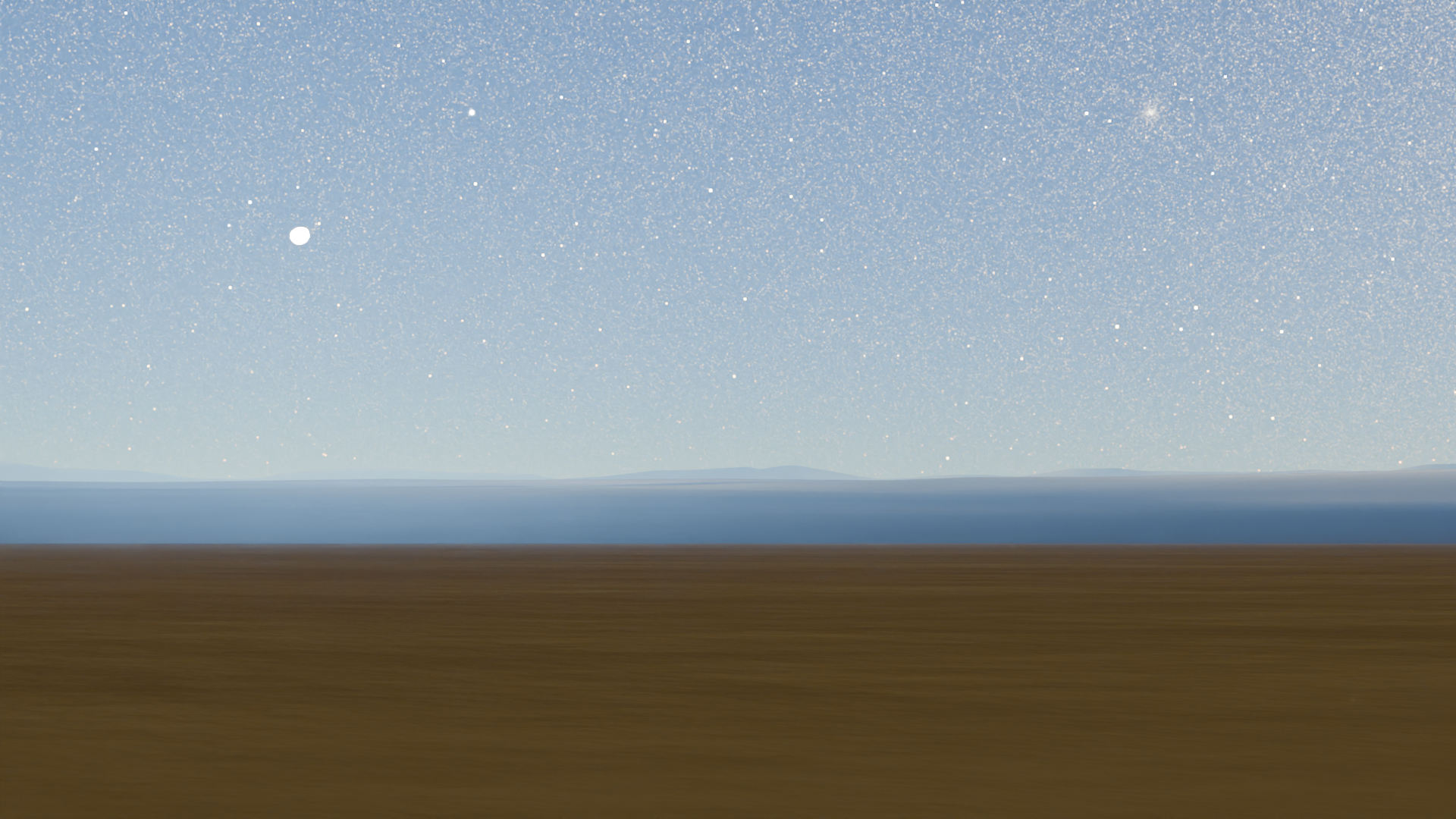
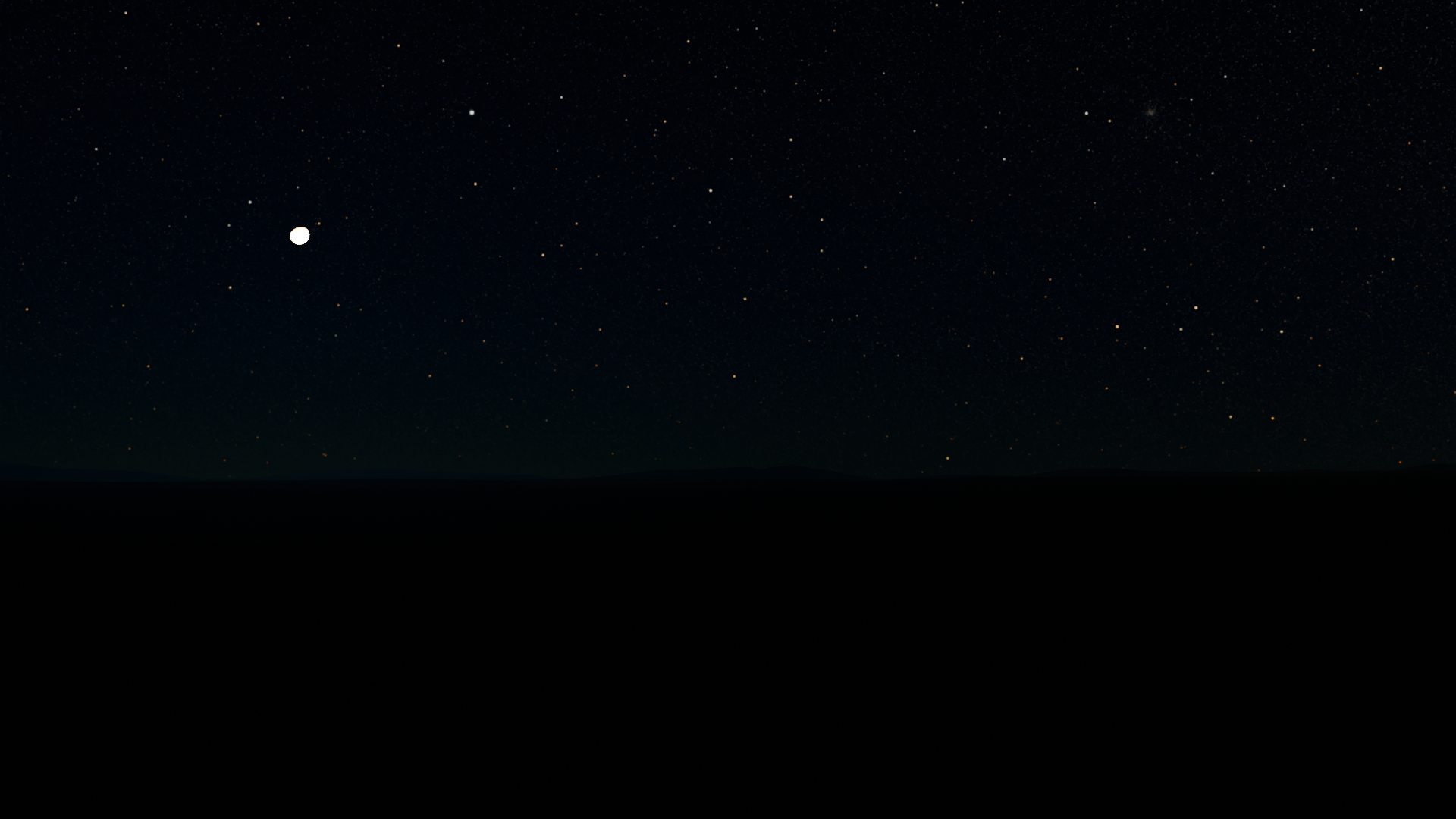
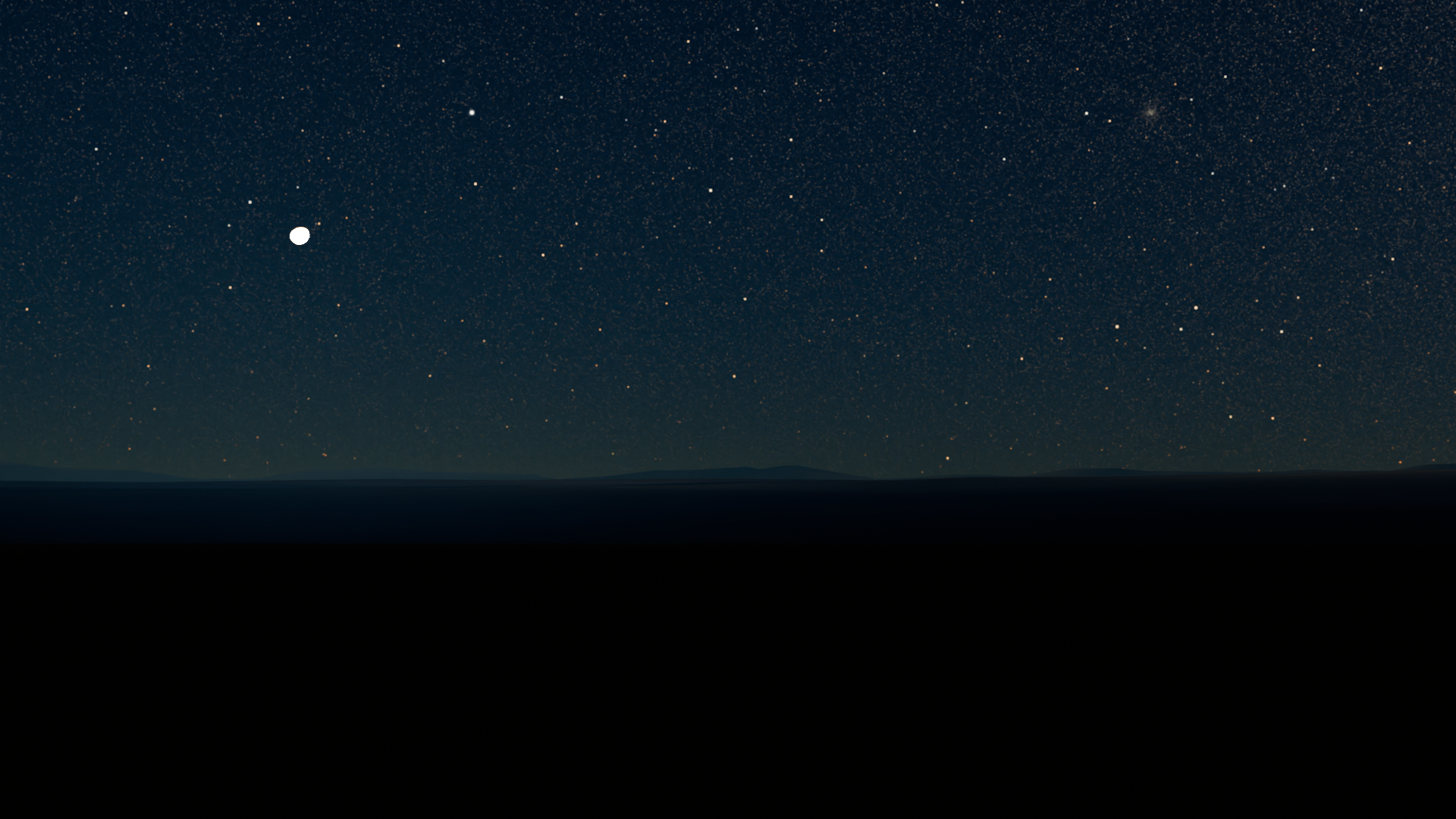
- Auto Night Mode: Detects night-like scenes and keeps exposure lower to preserve a night look without over-brightening.
- Weighted Size: Size of the center or spot region.
- Spot Location: Set the metering point (use the eyedropper).
Auto Night Mode comparison:
Exposure Offset set to 3.35 for all examples.
| Auto Night Mode Off | Auto Night Mode On |
|---|---|
 |
 |
 |
 |
Legacy auto exposure
Older scenes may show legacy tonemap options. Use them only to match previous looks.
Tips / Workflows
Faster viewport tuning
Prefer viewport controls? Use the Exposure gizmos for quick tuning. See Exposure Gizmos.